
I’m a subscriber to the MANGA Plus by Shueisha app on Android’s Google Play Store. For those who don’t know, this is Shueisha’s official channel (the Japanese publisher behind Shonen Jump) for reading their manga legally, with chapters releasing weekly nearly the same day they’re published in Japan. Two dollars a month gets you the entire catalog with an official English translation.
I own a Samsung ZFold 7, one of the few phones that’s actually good for reading manga and Kindle (I talked about this and about Frank Yomik in the AI marathon final ranking). The Fold opened gives you a bigger screen than a normal phone, which helps a lot. But there are days when my eyes are already tired of tiny screens, and what I really wanted was to read on a 32-inch OLED monitor that sits right in front of me, perfect for long sessions.
The problem is that MANGA Plus has no official website for reading. The subscription is locked to Android. There’s an iOS version too, but no web. A tablet helps, but nothing beats the comfort of a big, static screen when you want to read a whole One Piece arc in one go.
For context, I caught up on a lot recently: I finally finished Chainsaw Man, Dan Da Dan, Jujutsu Kaisen, Kagurabachi, Akane-banashi, Sakamoto Days and, of course, One Piece. There’s a lot more I want to follow, and the comfort of the big monitor became a real problem worth solving.
The main act here is Frank Manga+, which fixes Shueisha’s desktop gap. At the end I also cover two pieces of my setup: Prettify Manga Reader, for turning fansub sites and Kindle Web into tolerable readers, and Frank Yomik in the browser, for furigana/translation on Kindle Japan and Naver.
Decompiling the app
I decided to dig in. I sat down with Claude Code and we downloaded the official MANGA Plus xapk. We decompiled it to Java source with jadx and navigated around until we understood how the app authenticates with Shueisha’s API.
The conclusion is straightforward: the user’s “subscription,” from the app’s point of view, is a 32-character hexadecimal deviceSecret stored in a plain XML file inside Android’s shared preferences. The app generates this secret once when you log in, and from then on every API call (jumpg-api.tokyo-cdn.com) is signed with it. No elaborate DRM, no rotating token, none of that. A single static secret per device.
The catch is that extracting that secret from the app is a hassle, because by default you don’t have access to /data/data/jp.co.shueisha.mangaplus/shared_prefs/config.xml on a non-rooted Android. Three paths exist:
- Rooted phone: run
adb shell su -c "cat /data/data/jp.co.shueisha.mangaplus/shared_prefs/config.xml"and look for<string name="secret">...</string>. - Rooted emulator: install Android Studio, create an AVD with Google Play x86_64, apply rootAVD for Magisk root, log into the Google account that holds your subscription, install MANGA Plus from the Play Store, then run the same
adb shellabove. - Network capture with mitmproxy (more advanced): run the rooted emulator, inject the mitmproxy CA via Conscrypt APEX, and intercept the secret on the app’s first authenticated call.
All three paths are documented in detail in the repo’s docs/install.md and docs/debugging.md. I won’t repeat them step by step here because it’s more about tooling than technique, and anyone willing to put in the work will want to read the original. The important thing is that it works, and you only have to do it once: once extracted, the secret keeps the desktop app working for as long as your subscription lasts.
Yes, it’s annoying. But it’s the price for having a single configuration point that unlocks the rest.
The desktop app
With the secret in hand, the rest was easy. I built Frank Manga+, a native app in Rust + Tauri, with a SvelteKit WebView on the frontend and a Rust client using reqwest on the backend talking directly to Shueisha’s API. To load chapter images without leaking URLs or fighting CORS, I created a custom mpimg:// scheme intercepted by Tauri, which downloads, decrypts (the API serves pages with a simple XOR), and hands the result back to the WebView.
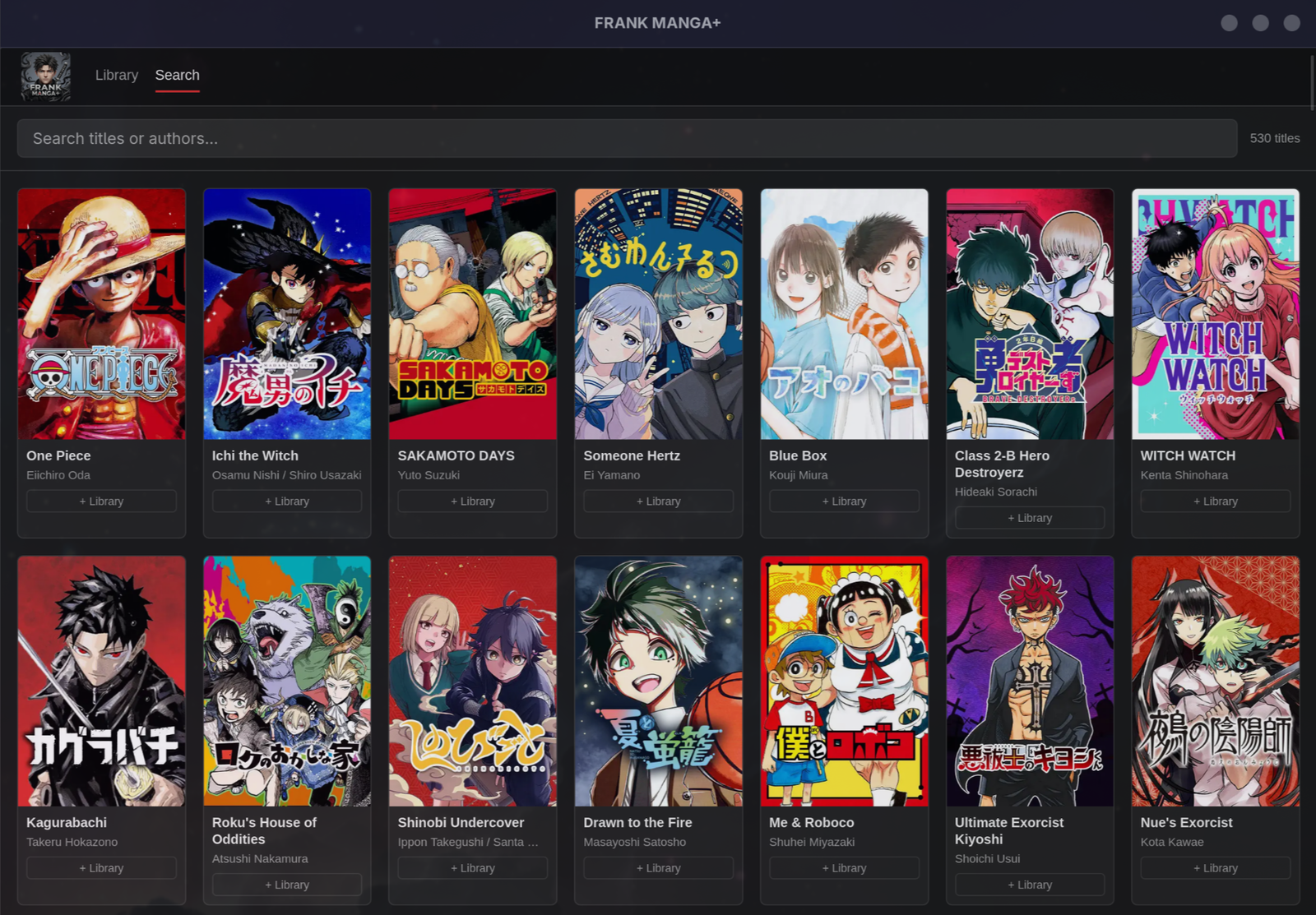
The app opens on a library view with search:
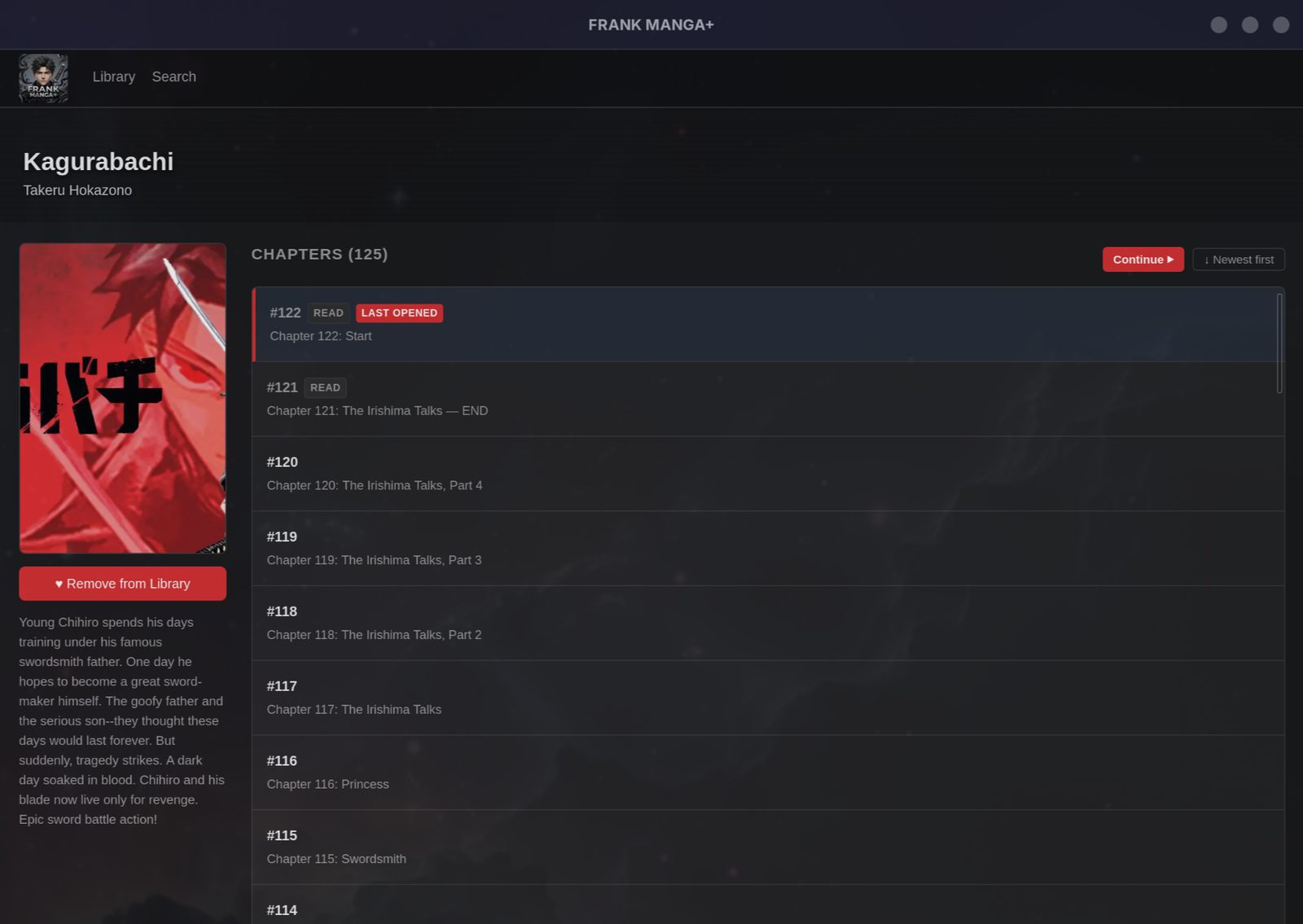
Clicking a title takes you to a detail page with the full chapter list and a “Continue” button that picks up from the last chapter you read:
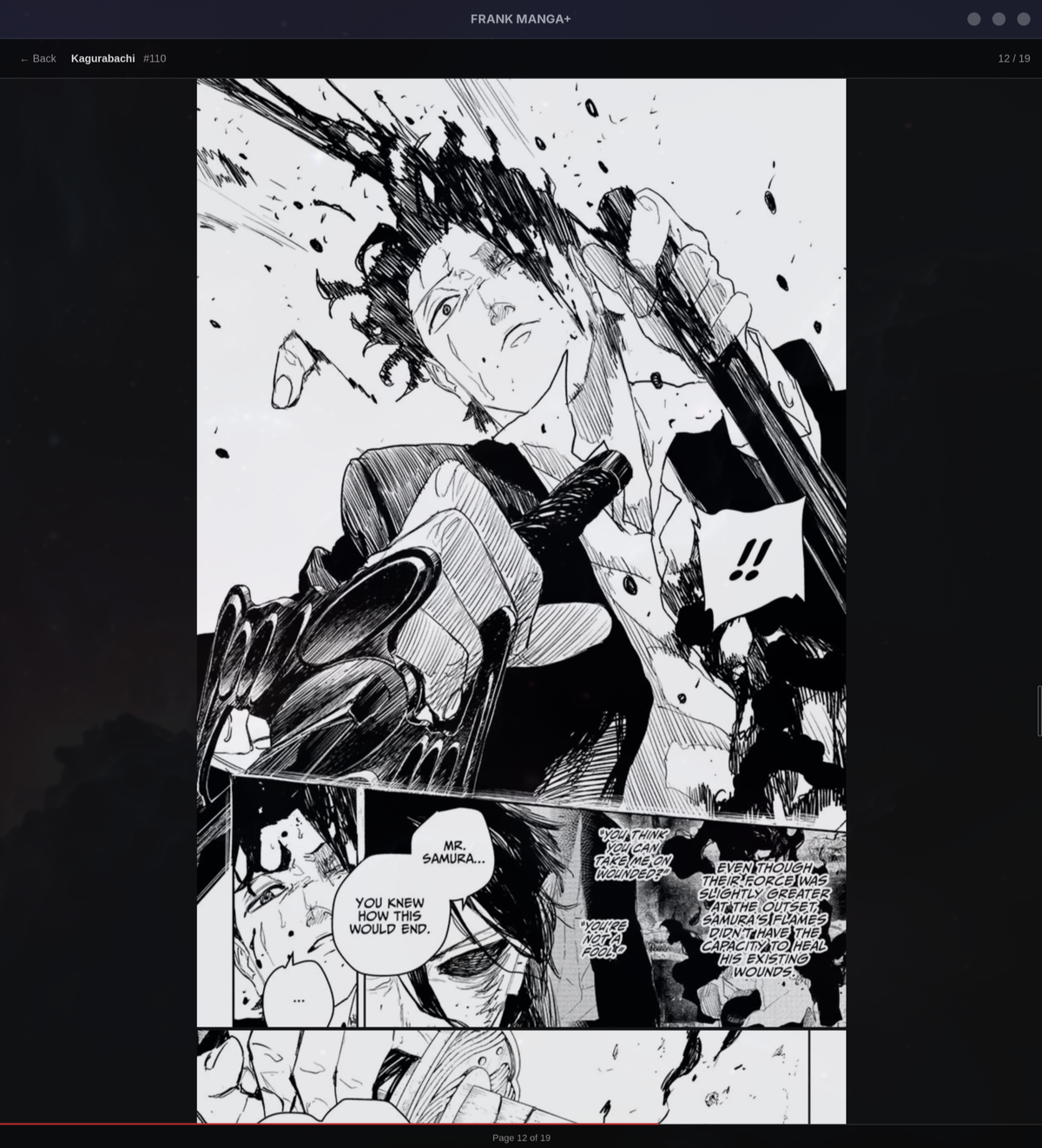
The reader opens in single-page, with snap-per-page and manga-style click zones: click the left half of the page to advance and the right half to go back (Japanese right-to-left reading direction). If you’d rather use the keyboard, arrows, Space, j/k, and PageUp/PageDown all work. When you hit the end of a chapter, the next one prefetches and gets appended to the scroll, so you don’t have to bounce back to the chapter list every time. And resume is per-chapter: leave mid-read and the next time you open that chapter you land on the exact page you stopped at. For huge series like One Piece (1100+ chapters), the list is virtualized, so it opens instantly:
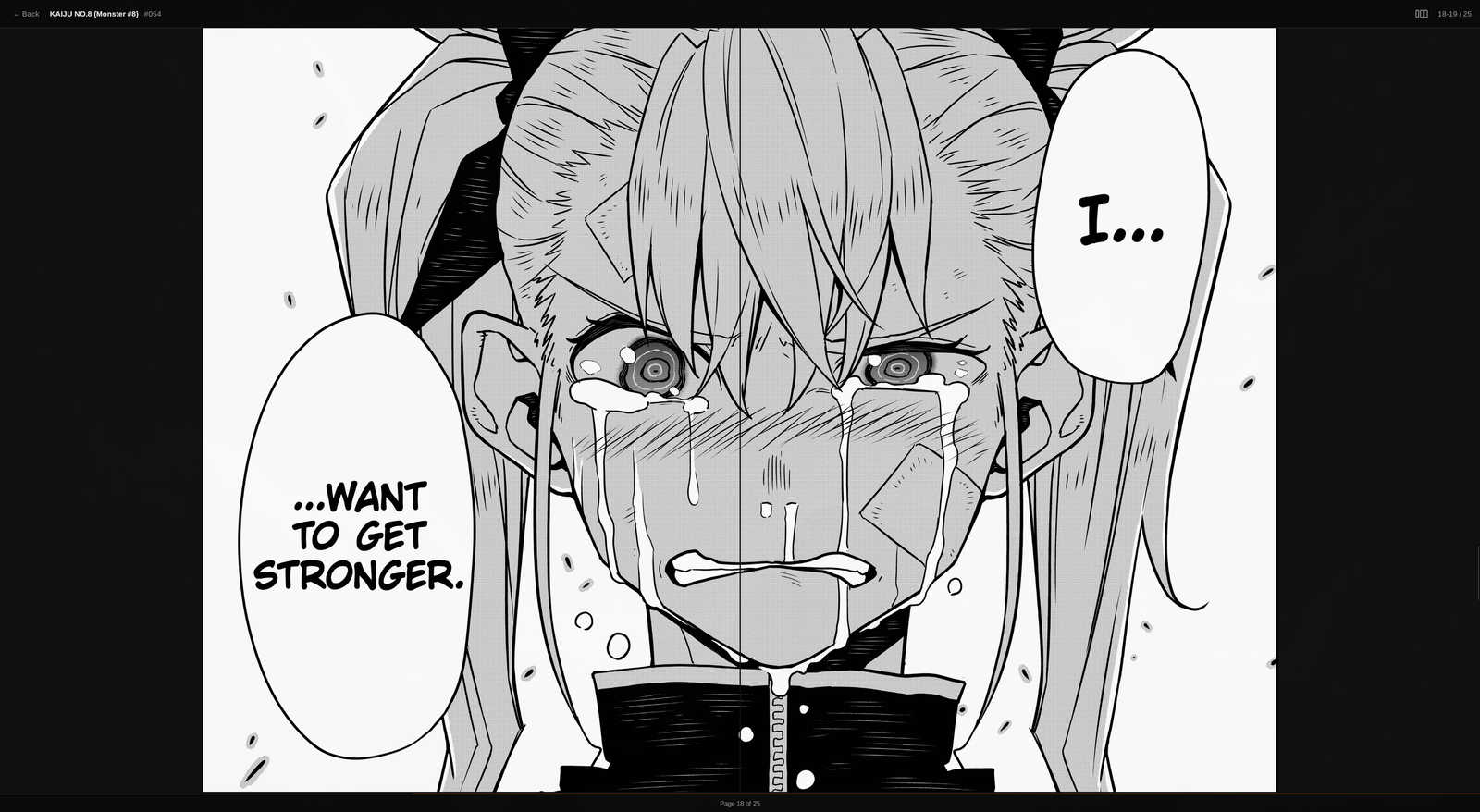
On a 32-inch monitor, single-page wastes half the screen. That’s why there’s double-page mode: hit D (or click the layout icon in the header) and the reader starts pairing facing pages, so the whole spread fills the screen the way the author drew it. It’s how manga was meant to be read.
You can see why that matters when you compare it with cheap binding. Bad paperbacks swallow the middle of the fold, exactly where the art is supposed to connect. In digital, when the reader joins it properly, the scene gets room to breathe:
| Frank Manga+ joining the spread | Cheap paperback swallowing the fold |
|---|---|
 |  |
D cycles through three layouts: single (one page at a time), double (sequential pairs starting from page 1), and double-cover (the first page of each chapter solo, the rest in pairs, the way printed manga binds the cover singly before the first spread). The choice persists across chapters and sessions, so you set it once and forget it.
There’s also a night-reading filter. Hit F (or click the crescent-moon icon in the header) and the page whites warm toward sepia. LCD white is harsh on the eyes in the dark, and this softens it without flattening the contrast:
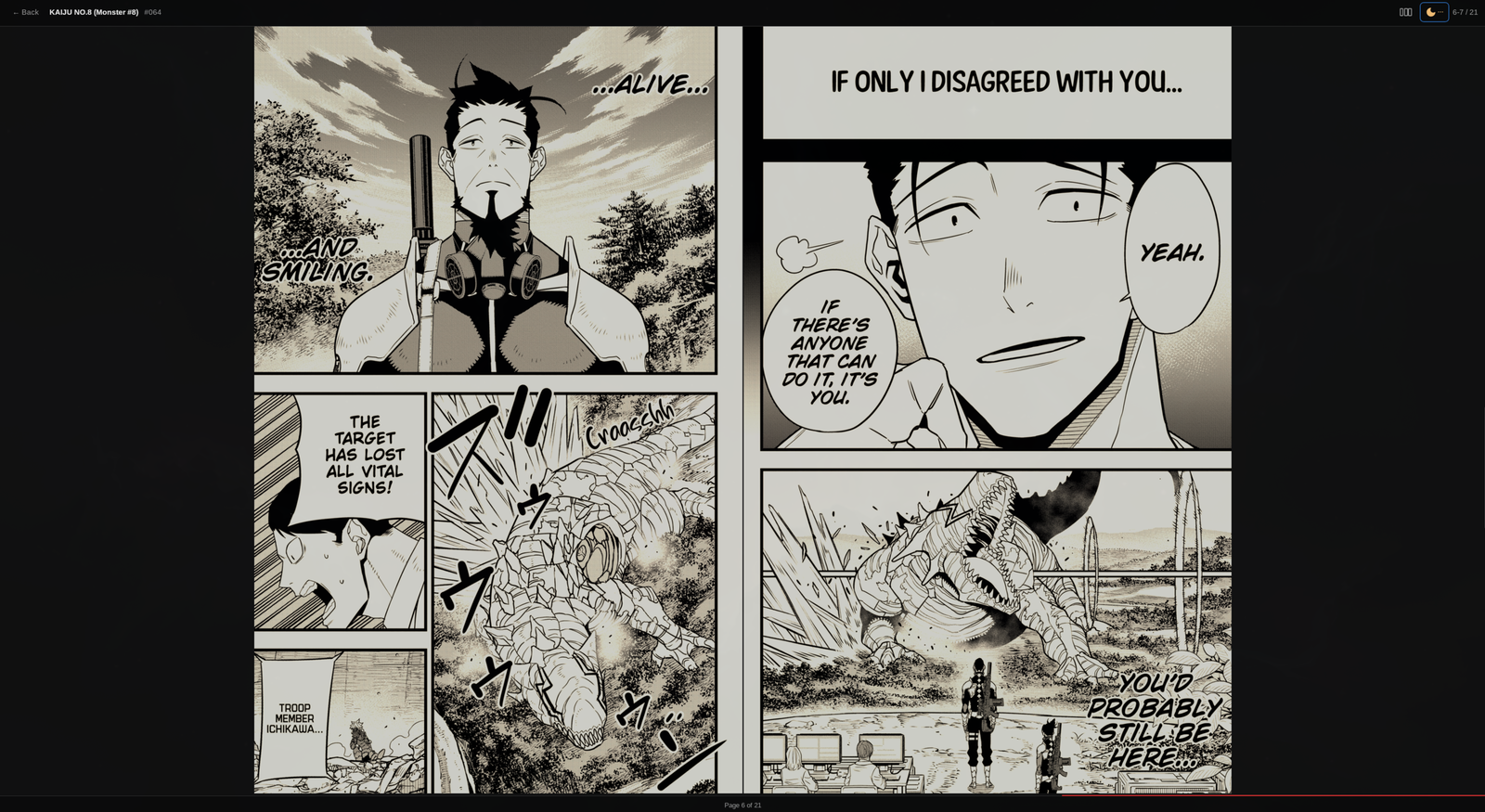
F cycles through four levels: off → low → med → high → off. The button tints amber and shows one to three dots for the active level, and the choice is saved in localStorage like the reader’s other prefs. Under the hood it’s a CSS sepia + brightness + saturate filter on the whole page-stack: the sepia pushes the hue toward amber but preserves the luminance range, so blacks stay black and the artwork’s contrast is intact.
Reading state (last chapter, current page) lives in the WebView’s localStorage. Image cache at ~/.cache/mangaplus-reader/. The extracted deviceSecret lives in ~/.config/mangaplus-reader/secret (Linux/macOS) or %APPDATA%\mangaplus-reader\secret (Windows). You can override it with the MANGAPLUS_SECRET environment variable if you prefer.
Install
There’s a build ready for all the main platforms:
- Linux: AppImage,
.deb,.rpm, or via AUR (yay -S mangaplus-reader-bin). - macOS: separate
.dmgfor Apple Silicon (aarch64) and Intel (x64). - Windows:
.exeinstaller. It’s not signed, so Windows SmartScreen will complain, click “More info → Run anyway”.
All artifacts come out on the GitHub Releases.
Status and contributions
This is beta. It works fine for my use (I read several series a week with no headaches), but it’s missing features: genre filters in search, real offline mode (today it only caches what you’ve already read), and a smoother secret-extraction path for less technical users.
If you subscribe to MANGA Plus and want to test it, send an issue or PR. The code is Rust + Svelte, MIT, contributions welcome: github.com/akitaonrails/frank_mangaplus.
Now I finally read One Piece on the big monitor, without having to hold a phone or twist my neck. The work paid off.
Bonus: Prettify Manga Reader for fansub sites
Besides the desktop app, I keep a simpler extension around: Prettify Manga Reader. It does not translate anything. Its job is to fix the reading experience.
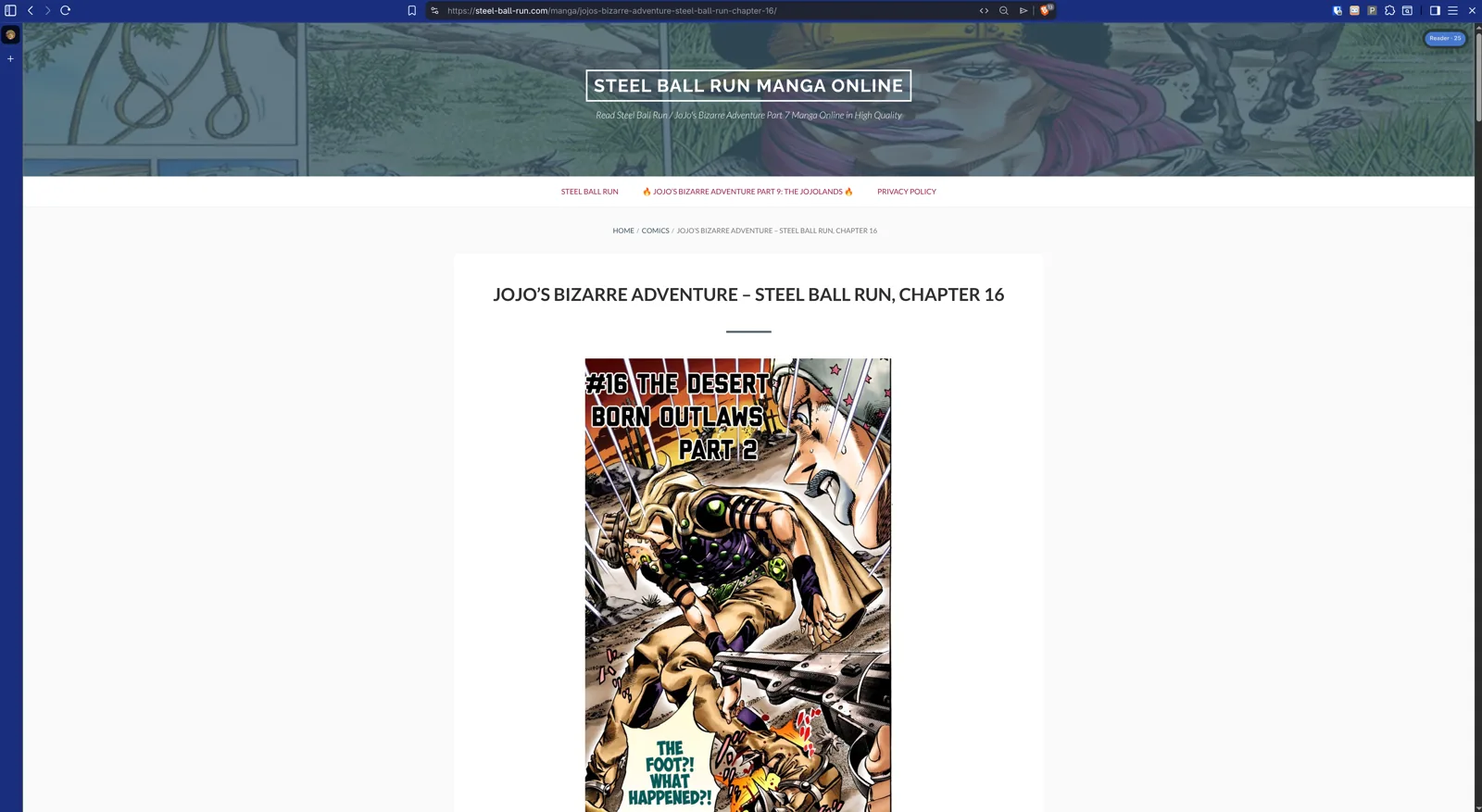
Most fansub sites are ugly, packed with banners, and obviously built for phones: one page under the next, endless vertical scroll, good luck. That’s practical on a phone, but manga was not drawn like an Instagram feed. Manga was drawn for page turns. Two pages open at once. The reading rhythm, the reveal, the pause between panels, all of it assumes that pair.
And many authors use that to draw two-page spreads. Kaiju No. 8 does it several times. If the site stacks one page under the other, you can still read the speech bubbles, but the full composition is gone. You’re seeing half the art at a time and thinking you saw the whole thing.
The usual site looks like this:
Prettify opens a dark overlay, fits the art to the screen, and joins pages at the center seam when Book or Double mode is active. The spread looks like a real two-page spread again:
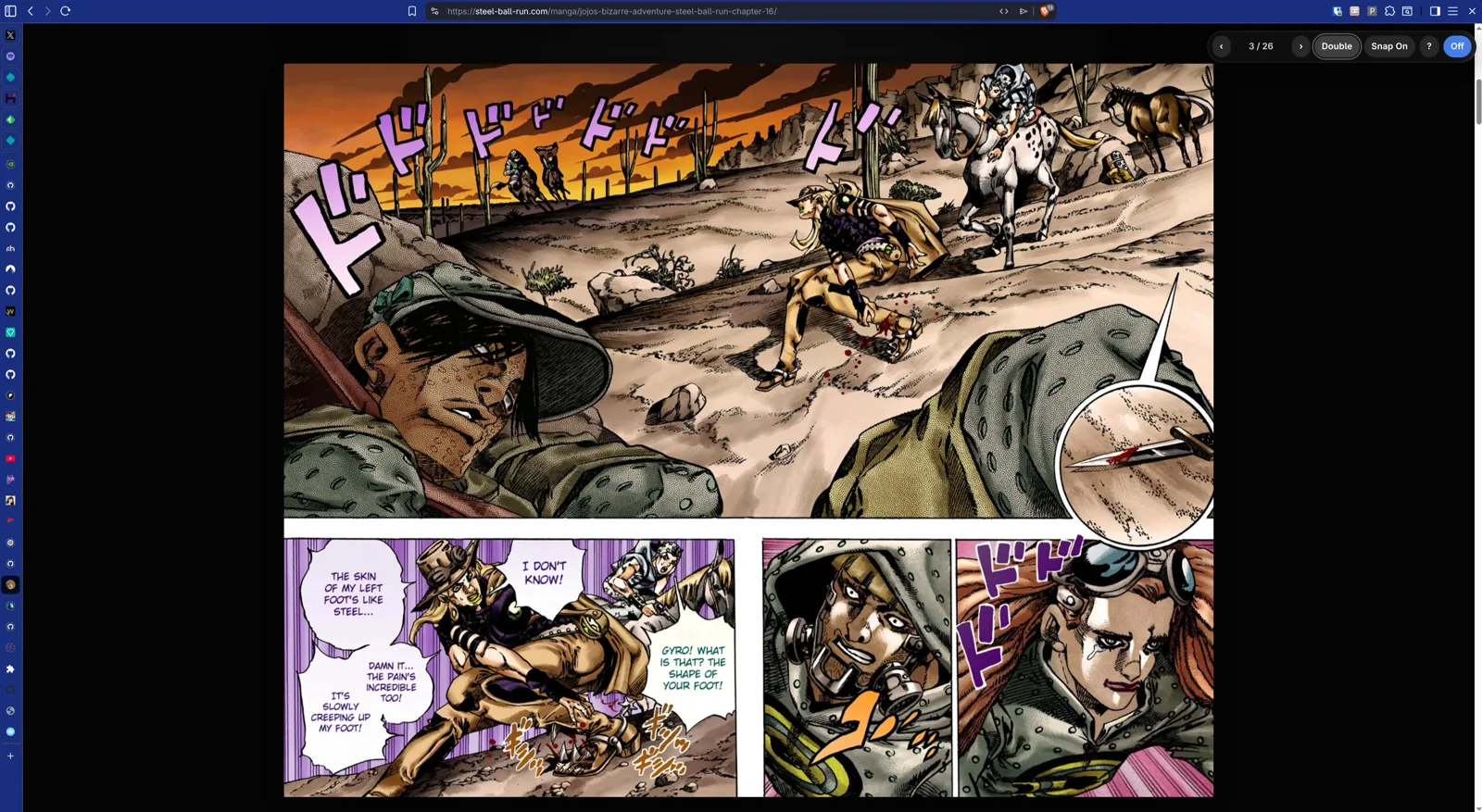
It has three modes: Single (one page per screen), Double (pairs from the start), and Book (first page alone, then pairs, like binding). It opens in Book by default. If an image is already horizontal, it stays as a full-width spread. It has scroll snap so every page lands in the right place, keyboard shortcuts, small mouse controls, help with ?, and an end-of-chapter card that tries to find previous/next chapter links when the site makes them obvious.
It also has a three-level night filter. Hit N and it warms the page with sepia, brightness, and contrast without turning the art into dead gray. A white manga page on a big monitor at night is a flashlight to the face. This fixes it.
To install it, go to the Prettify Manga Reader GitHub repo, download the zip from Releases, unzip it into a permanent directory, open chrome://extensions or brave://extensions, enable Developer mode, click Load unpacked, and select the unzipped folder. If you want to build from source, clone the repo, run npm test, then npm run package, unzip the package generated under dist/, and load that folder.
On Kindle Web Reader, Prettify deliberately does less. On URLs like read.amazon.com/manga/..., read.amazon.co.jp/manga/..., read.amazon.co.uk/manga/..., and read.kindle.* domains, it doesn’t try to rebuild the book inside its own overlay. Amazon’s reader already handles account, pages, and DRM; the extension only adds a discreet bottom-right toolbar and keyboard shortcuts on top of the native reader.
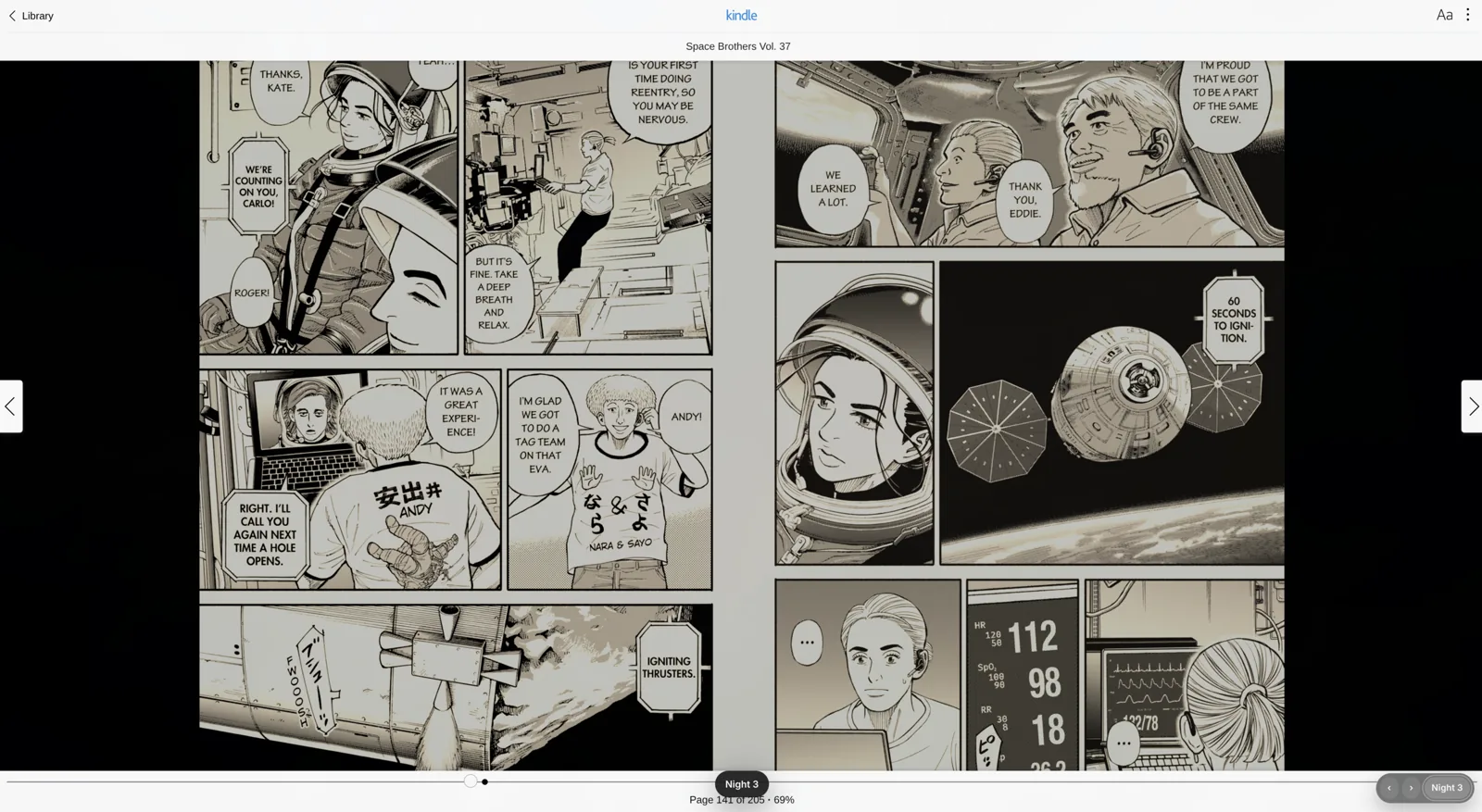
Space, PageDown, and arrows advance the page; Shift+Space, PageUp, and the opposite arrows go back; Home/End jump to the beginning or end when the native reader accepts them, with a scroll fallback; N cycles the night filter. It doesn’t store Amazon credentials, doesn’t touch sessions, and needs no token in the code. It’s just visual comfort and keyboard control on top of the Kindle Web that already exists.
Bonus 2: Frank Yomik now on the desktop too via extension
Anyone who read the AI marathon recap remembers Frank Yomik, my self-hosted project that takes a manga or webtoon page, detects the bubbles with RT-DETR-v2, runs OCR, sends it to a local Ollama (qwen3:14b) for translation, and returns the page with the translated text in place. I already covered the story and the technical details in My First Vibe Code Failure and How I Fixed It | Frank Yomik. The point here is the new desktop piece.
Originally it had only a Flutter client for Android and Linux, which opened Kindle Japan and Naver Webtoon inside a WebView. The thing is, running a Flutter app inside a WebView on the desktop just to read Kindle is using a sledgehammer to crack a nut. On the desktop you already have Chromium open. What was missing was a browser extension.
Over the past few weeks I added exactly that. A Manifest V3 extension for Chromium/Brave/Edge, talking to the same self-hosted Yomik server. It runs on read.amazon.co.jp, read.kindle.co.jp, comic.naver.com, and Naver’s mobile version. The page stays visually identical to the original, with no injected buttons or HUD in the reader’s face. All configuration lives in the popup:
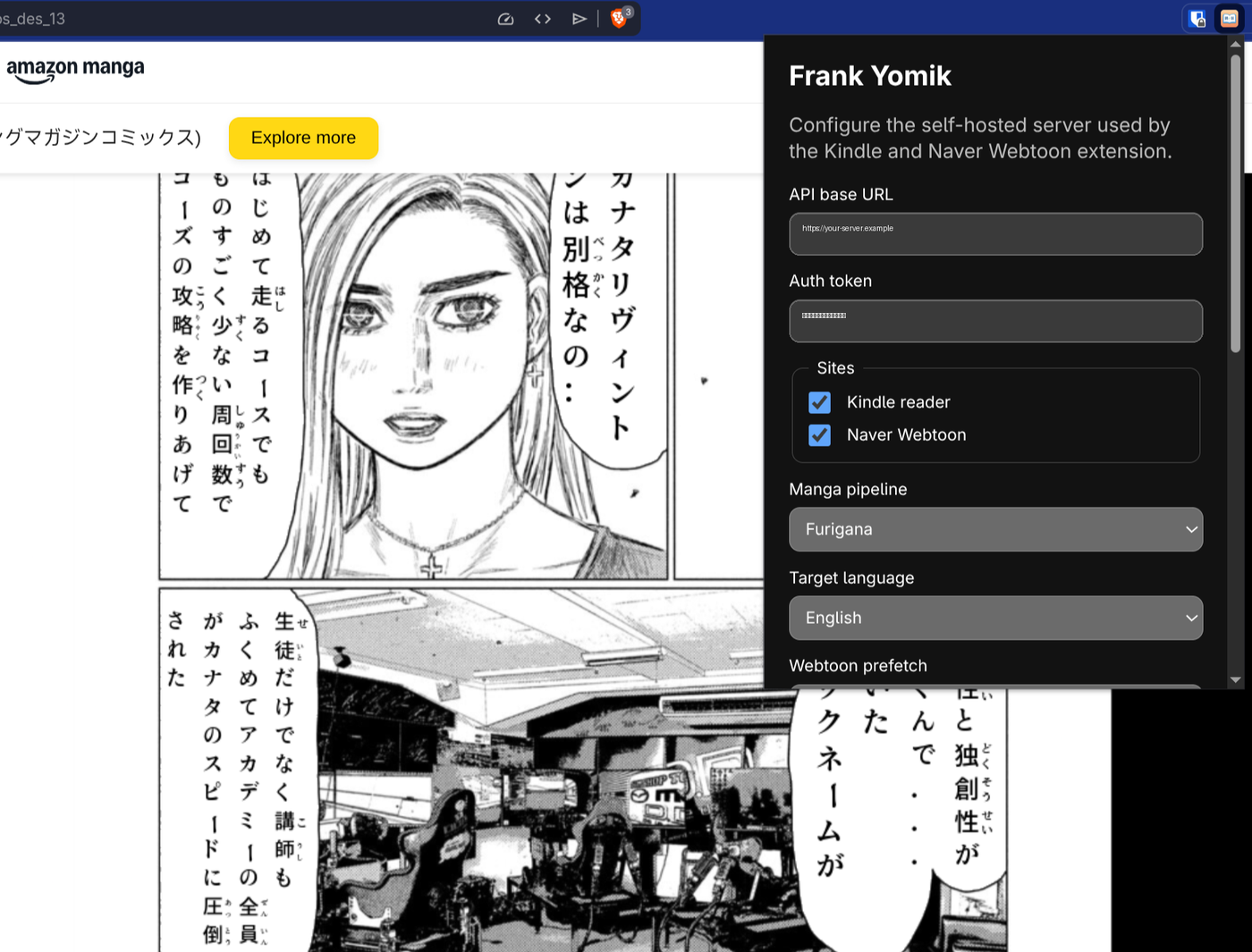
The content script grabs the current page image and sends it to the server. The bearer token sits in the service worker, so it never leaks to the page’s JS. When the translation comes back, the image gets swapped in place of the original. There’s a local cache to avoid re-translating pages you’ve already seen, a “force reprocess” button for when you need to file a bug report, and autosave for the config. Details in the extension README, and the Load Unpacked zip ships with the repo’s Releases.
In practice, the 32" monitor is now my reading desk. Frank Manga+ opens Shueisha’s official catalog in English (One Piece, Chainsaw Man, and whatever else Shonen Jump publishes). When it’s fansub or Kindle Web and all I want is visual comfort, Prettify handles the reader, keyboard, and night filter. When I want to read something Japanese with no official translation, I open Kindle Japan in another tab and Yomik renders furigana or an LLM translation on top of the page. For Korean Naver webtoons, same story, same extension.
The nice part is that each project solves a different piece and they complement each other. Frank Manga+ exists because Shueisha has no website. Prettify makes browser readers less miserable. Yomik exists because the rest of the manga I read doesn’t have a decent official translation in any reasonable timeframe. For a manga addict like me, it’s the setup I’d been wanting for years.