[Off-Topic] Bought My First Mac — Now What?
Update 04/20/2012: This is one of the most-read articles on my blog, first published in 09/2009. Most of the article still holds up well today, so I decided to adjust a few things and add more current information. If you’ve already read this article and want to see only what I added, check this post.
You’re a “switcher” — you’ve decided to take the big leap away from the Windows world and bought your first Mac. The timing is good and prices are accessible, especially if you can buy from someone abroad. One thing you need to keep in mind: this is a paradigm shift. The first week or two will be the hardest, and you’ll always have that thought: “On Windows I could do this more easily…” or “On my Linux I could do this more easily…” — the temptation to go back is always strong when you first leave your comfort zone. It’s the same with any change. But push through and try not to use the old tricks — learn the new ones instead.
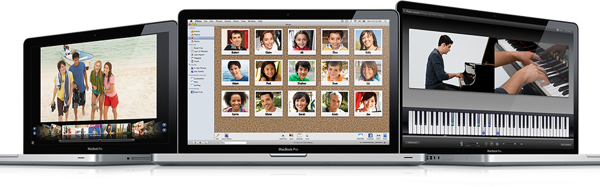
As soon as you log in to the Mac for the first time, it comes in a state where you need to configure very little. Understand a few important things to get started:
- The first thing that’s different is that application menus are all centralized. The bar at the top is the only menu, and it changes according to the application that currently has focus. The first option is the icon which gives access to global system options like “About” where you can view details of your hardware; “Software Update” which is the equivalent of Windows Update; and options like Shutdown. By the way, the very first thing you should do when starting your Mac for the first time is to activate Software Update and download and install the latest updates. Unlike Windows, you tend to get large packages rather than dozens of small updates.

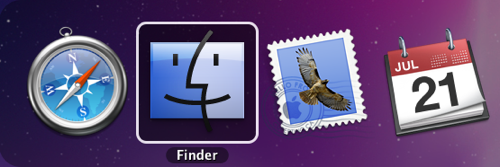
The second option is always the name of the focused application — initially it will always be “Finder,” which is the equivalent of Windows Explorer. This menu always gives access to things like “Preferences,” which on Windows is usually under “Edit” or “Tools” menus.
Some shortcuts are global and constant. To start, understand that there is the Ctrl (control, as on a PC) key and a special one called Command ⌘. They are different — and although it’s not a hard rule — things done on a PC with Ctrl, on a Mac are done with ⌘. For example, copying text to the clipboard is ⌘+C, not Ctrl+C. Pasting is also ⌘+V. Every application is closed with ⌘+Q. The “Preferences” option is always ⌘+, (comma). The “Help” menu is always ⌘+Shift+?. On that last Help option, a tip: use it to discover menu items whose shortcut you don’t remember or which submenu they’re in. Just type a few letters of that option and Mac OS will open the menu and leave it selected on the correct item for you.
Unlike Windows, the Mac paradigm is based on windows per document rather than a single window per application with embedded document windows. ⌘+W closes the current window of the application. ⌘+N or ⌘+Shift+N usually opens a new window. We don’t normally close applications very frequently — they tend to stay open. This is indicated in the Dock, at the bottom of the screen, with a glowing circle below the icon of an open application.
Also unlike Windows windows, the red circle at the top of each window closes only that window, not the entire application — it’s equivalent to ⌘+W. Another thing: you can move a window from the title bar or the footer bar of the window, when there is one. This means that even if a window is partially off the physical desktop, you can still move it. On the other hand, the only way to resize a window is from the lower-right corner, not from any edge.

In the title bar of applications that manipulate files — like Finder, Pages, etc. — i.e., most apps that display the filename with an icon next to it — the elements are “normally” draggable. You can drag the icon to a folder and the file being edited will be moved. You can also click the mouse while holding ⌘ (Command) and it will show the parent folders, letting you navigate.
Another thing that doesn’t exist on Windows: “Hide Windows.” Get used to using the combination ⌘-H to hide all windows of an application. It’s not the same as minimizing them — they don’t appear in the Dock. A hidden application has a transparent icon in the Dock. Even more useful: if you have dozens of applications open in a window-upon-window mess, you can also use ⌘-⌥-H (Command-Option-H) to hide all windows except the one currently in focus. It’s a very satisfying way to “clean” your desktop and focus on what you’re doing.
To switch between applications, on Windows we’re used to Alt-Tab. On Mac the near equivalent is ⌘-Tab. But it switches between Applications, not between Windows as on Windows. It’s a subtle difference. If you have Photoshop with 4 windows and Word with 3 windows open, ⌘-Tab will show only 2 icons, one for each application. To switch between windows of the same application, use ⌘-` (Command-Backtick). Or more commonly, just use Exposé to select between windows.
Note the icons on the F1 through F12 keys — they clearly indicate the functions you get when pressing them. F1 and F2 are screen brightness. F3 is Exposé. F4 is the Dashboard, where you install Widgets. F11 and F12 are volume. Those are the main ones. Don’t forget that on newer MacBooks with Multitouch Trackpad you have options like swiping 4 fingers down to activate Exposé or up to show the Desktop.
Spotlight is very useful. ⌘+Space activates the search field. If you use external hard drives, USB drives, and don’t want to waste time indexing their files, remember to open “System Preferences,” option “Spotlight,” and drag the volumes that should be excluded.
For those used to Explorer, you’ll miss a lot of things in Finder. For example, you can copy and paste folders and files but there’s no cut. You can move items to different volumes by dragging and dropping while holding ⌘. To force a copy, use the Option/Alt (⌥) key. You’ll end up using drag-and-drop much more than on Windows. Beyond that you have different alternatives for organizing your files, especially combined with the fact that ⌘+I opens the Info window where you can add metadata like keywords for searching, colors (yes, you can even search for files and folders by color in Spotlight).
Another difference in Finder compared to Explorer is renaming files and running programs. In Explorer you use “Enter” to execute a file and a single mouse click to rename. On Mac you use “Enter” to edit the name of a file or folder and ⌘+O to run a program. This helps avoid those situations where you select dozens of files, accidentally press Enter, and a cascade of programs starts opening. On Mac that accident basically doesn’t happen.
The Dock provides quick access to your favorite applications. You can drag an icon out to remove it or drag anything onto it to add it. If an application not already there is opened, its icon appears in the Dock since the Dock also shows all running applications, with a “glowing” indicator below it. If you want to keep an application in the Dock beyond dragging it, you can take advantage of when it’s open — use the context menu (right-click) on its icon and choose “Keep in Dock.” If you want that application to launch every time you log in, use “Open at Login.”
Mac OS Leopard (10.5) didn’t ship with the US International keyboard layout common on Windows for non-ABNT-2 keyboards. The Mac default is to use shortcuts like ⌥+c for cedilla (ç), ⌥+e for acute accent, ⌥+` for grave accent, ⌥+n for tilde. But if you want the traditional way, download the US International layout for Mac from Brazilian developer Rainer Brokerhoff’s website and follow his instructions. From Snow Leopard (10.6) onward, this is no longer necessary.
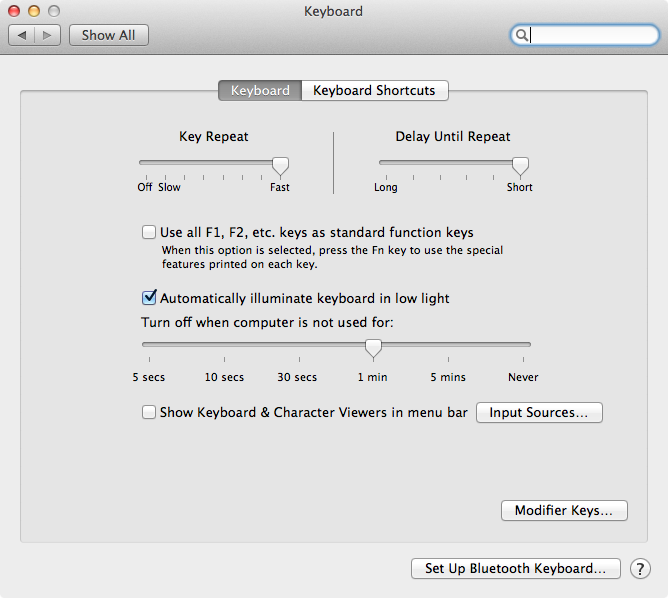
As on Windows and other OSes, on Mac the keyboard key repeat rate is configured by default to be somewhat slow. For example, open any text editor and use the arrow keys to position the cursor — it’ll feel sluggish. I prefer maximum speed. To do this, go to “System Preferences, Keyboard” and set “Key Repeat” to “Fast” and “Delay Until Repeat” to “Short.” You’ll thank me:
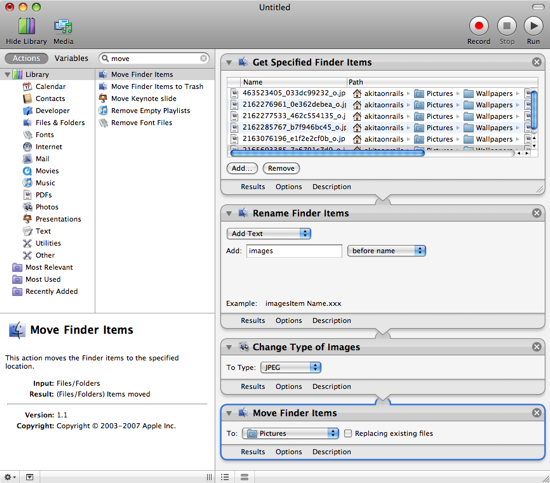
- You have hundreds of files — photos from your digital camera, say — in JPG, and you’d like to rename them all to another naming convention and convert them from JPG to PNG. You can do this and much more using a feature called “Automator.” In Finder, select all the files you want, right-click (on the Trackpad: place two fingers in the middle of the trackpad and use your thumb to click once at the bottom) and choose “More,” “Automator,” “Create Workflow.” This will open the selected items in Automator, which represents a linear flow of “filters” where you can chain the output of one filter as input to the next — like “Change Type of Images,” then “Rename Finder Items,” and even “Add attachments to Front Messages,” and so on. It’s an extremely powerful way to chain actions, very similar to Unix/Linux command-line pipes, but in a much more intuitive form.
Few people understand how to take screenshots at first, since there’s no “Print Screen” key on a Mac. But there’s something far better: use ⌘+Shift+3 to take a full-screen screenshot and save it as a PNG file on your Desktop. If you don’t want the file, ⌘+Ctrl+Shift+3 takes the screenshot to the clipboard so you can paste it into another application. Even more useful, ⌘+Shift+4 transforms your cursor into a crosshair that you can use to take a screenshot of just a small area you select. If you position the crosshair over any window and press “Space,” it will select that entire window. For clipboard-only, use ⌘+Ctrl+Shift+4.
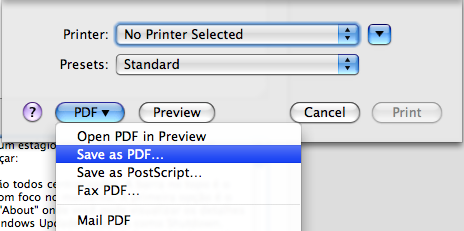
Another important thing: every print dialog opens with ⌘+P, and it always has the option to generate a PDF instead of sending to a printer. This is extremely useful if you don’t have a printer or want to save a receipt from the web or something like that. Beyond that, the “Preview” application that opens images and PDFs can also do some simple editing like resizing images, cropping images, copying pages between PDF files, reordering pages, deleting pages — in other words, PDFs are quite editable on a Mac without needing a commercial Adobe product.
Speaking of “Preview,” learn to use “Quick Look.” When you want to view images, videos, audio, PDFs, Office files, iWork files, etc., just select the file (or a set of files) and press “Space.” This will open a floating window where you can quickly view the file. “Space” again closes that window. You can preview most major file formats without needing to open their respective programs.
On PCs we tend to create custom folders for videos, photos, etc. On Mac, try to use the default folders it already gives you. More than that, get in the habit of using iTunes to organize your music and videos; iPhoto for your photos; iMovie to edit your videos. This will always keep your Mac very organized, make backups easier, simplify searches, and make everything more accessible in general. Many Apple applications integrate with the iLife suite (which includes iTunes, iPhoto, GarageBand, iMovie, and iWeb), so it’s simpler to let these apps manage your files. Watch the screencasts on Apple’s website if you don’t know how they work yet — they’re very simple, intuitive, and powerful.
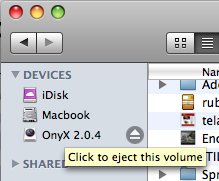
- Another thing that always trips people up is how to install applications on a Mac. You usually end up downloading one of two file formats: DMG and MPKG. The first stands for (D)isk i(M)a(G)e — it’s similar to an ISO. When you double-click it, the DMG “mounts” inside /Volumes. Usually the application is already there inside, and you just drag it to the “Applications” folder on your Mac. Then you can “eject” that DMG using the ⏏ icon or ⌘+E. The second format, (M)ac (P)ac(K)a(G)e, is equivalent to Windows’ MSI. You double-click it and it runs like a standard installer as you’d see on Windows. Usually only programs that need to install many system components do this, like Microsoft Office, Adobe CS4, and similar. Sometimes you’ll download a ZIP file that contains either a DMG or an MPKG. The important thing: if it’s a DMG and there’s no MPKG inside, always drag the application to the Applications folder before running it. Safari does an extra step — it downloads the DMG, mounts it, extracts the application, and deletes the DMG, so you can drag it to Applications from the Downloads folder. A technical detail: MPKGs come with something called a BOM (Bill of Materials) which serves as a recipe for the case of running scripts to adjust system file permissions — the BOM contains the original permissions those scripts use. The same applies to uninstalling since the BOM contains everything that was installed.

All application preferences are stored in your directory (/Users/your_login), then Library/Preferences. They’re files in plist format, which is XML stored in binary format. Regardless of where the application is copied, it will save preferences normally in that location. Don’t confuse the “Library” local to your home folder with the global “Library” at the root of the system — the latter you’ll rarely need to touch. On Mac there’s no Registry, and with that there’s also no nightmare of maintaining it. When an application starts behaving strangely, the first thing you can do is delete its .plist file.
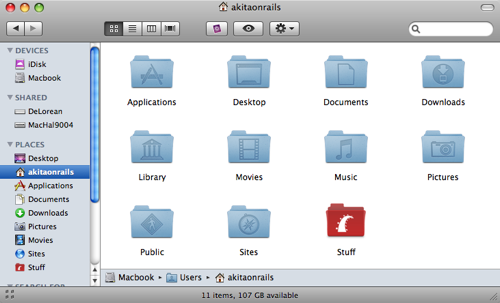
On Mac, Finder doesn’t show all directories. Most are hidden — directories like /usr, /bin, /tmp, /dev, /var, /etc, and others that Unix or Linux users should be familiar with. Some more important ones like System and Library at the root of your Mac are rarely accessed. User accounts are in the Users folder and applications in the Applications folder. Inside your “Home” folder are folders like Desktop, Documents, Downloads, Music, Movies, Pictures, Sites, Public, and Library. In this Library are things like “Application Support” where plugins and other application dependencies live, and “Preferences,” which I explained earlier. Browse through these folders — the naming should be fairly obvious.
Inside the “Applications” folder there’s another called “Utilities” (also accessible via ⌘+Shift+U) where you find things like “Activity Monitor,” which is similar to Windows Task Manager. There’s also “Console,” an easy way to view system log files for review. Another very important one is “Disk Utility,” which does advanced things like repartitioning your disk non-destructively, creating DMG files including encrypted volumes, burning DMGs to DVDs, and more.

Another thing: unlike Windows, Macs don’t have drive letters (C:, D:, E:, etc). The Mac, being a BSD Unix, behaves more like Unix/Linux, where DMG and ISO files are “mounted” inside the /Volumes directory and appear normally as disks in Finder that can be ejected. By the way, the Mac is very flexible when dealing with disk images — you can use Disk Utility to create bootable USB drives, create multiple boot partitions, copy DVDs into DMGs, and such. Network shared folders are also mounted in /Volumes. The behavior is very consistent, fast, and Finder is an application that — unlike Windows Explorer — rarely crashes and practically never returns to an inconsistent state.
A technical detail you’ll notice: Finder (including the top menu and Desktop), the Dock, and applications are very independent. On Windows — especially XP — you’ll remember that sometimes an application would get sluggish, making even clicking the Start menu or taskbar difficult. On Mac, even when Finder crashes or gets very slow, the Dock behaves independently. Other applications are also not affected, including their window refresh. Another tip: if an application truly freezes you can use ⌘+⌥+⎋ (Command+Option+Esc) to open a window where you can force-quit an application. Also, ⌘+Shift+Q forces the logout of the current user.
Speaking of deleting: select files and use ⌘+Shift+⌫. That ⌫ key is called “Delete” but it’s the Mac equivalent of the PC’s “Backspace.” The Mac equivalent of PC’s “Delete” key is Shift+⌫. You can also do more, like ⌥+⌫ to delete the whole word to the left of your cursor. Or ⌘+⌫ to delete to the beginning of the line.
For navigating text, get used to other combinations like ⌘+← and ⌘+→ to go to the beginning or end of the line. ⌘+↑ or ⌘+↓ for the equivalents of Page Up and Page Down. ⌥+← and ⌥+→ to navigate words left or right, respectively. These keys will become second nature because they’re used all the time.
If you’re in a text editor (Mail.app, Safari, TextEdit, etc.) and find it hard to read because the text is too small, use ⌘-Shift-’+’ to increase font size and ⌘-Shift-’-’ to decrease it. If you want to zoom in to see an image or small detail better, use Ctrl plus two fingers on the trackpad dragging up to increase zoom, or two fingers dragging down to decrease.
Still on text: if you select a text passage in any application, you can drag it to the desktop or another folder in Finder. It will be saved as a “snippet” — think of it like a persistent clipboard item you can drag back into another text editor or leave on the desktop temporarily until you decide what to do with it.
All MacBooks, including older ones, have always had a two-finger multi-touch action for scrolling. Just slide two fingers — without clicking — on the trackpad up or down to scroll, for example in Safari.
Before Lion, there was a feature to encrypt your files in real time. This feature was called FileVault and was bad enough to be ignored. But from Lion onward, FileVault 2 emerged — completely different and this time so good it would be foolish not to use it. Open “System Preferences, Security & Privacy,” the “FileVault” tab, and enable full disk encryption. VERY IMPORTANT: it will generate secure keys that allow decryption of your data. Write them down in a safe place and never lose them. One tip: hold your iPhone or any smartphone with a camera and take a photo of the screen when it provides the keys.

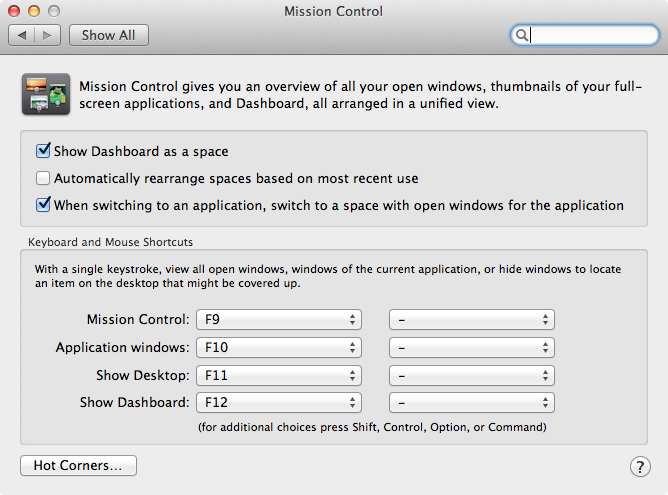
- From Lion onward, there’s the Mission Control feature, activated by placing four fingers on the trackpad and swiping up. It’s a “replacement” for the old Exposé and is genuinely practical once you get used to it. Applications, when “maximized,” become their own parallel “Space” and you can navigate between them by swiping 3 fingers on the trackpad left or right. However, the default configuration has these Spaces automatically rearranging based on usage. I personally don’t like this because I prefer my applications and desktops always in the same position (in Mission Control you can drag Spaces to wherever you like). To disable this forced rearrangement, go to “System Preferences, Mission Control” and disable “Automatically rearrange spaces based on most recent use.”
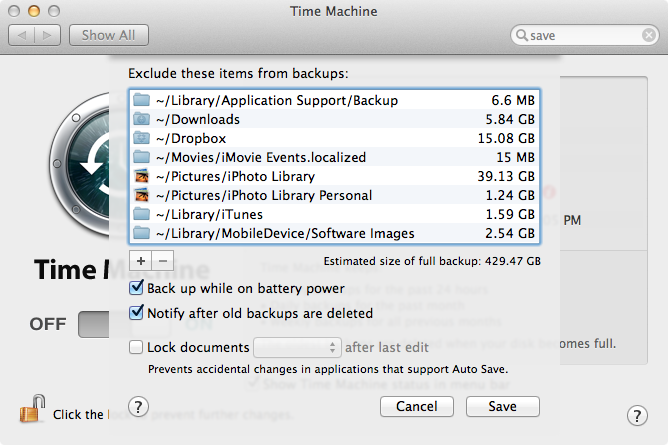
- Also from Lion onward, the way you save files changed a lot. There’s now the “Auto Save” feature. So if an unexpected crash happens, you need to force-shutdown the machine, or any drastic situation where you’d lose what you were editing in your applications — don’t worry, because Lion is automatically saving. However, there’s an uncomfortable situation where the file sometimes gets “locked,” preventing you from editing it. You can choose to manually unlock it but it’s inconvenient. I prefer to disable it by going to “System Preferences, Time Machine,” clicking the “options” button, and disabling “Lock documents.” Take the opportunity to check the photo below for how to do that, and also what I put on my Time Machine exclusion list — things I prefer not to back up either because they’re not important (Software Images, for example) or because I prefer to back them up manually (iPhoto).
Still on the new Lion way of handling documents and versions: understand that in new applications you now have the “Save a version” option in the menu, allowing you to save moments in time in case you need to go back and recover what you had before. Think of it as a “mini Time Machine” or granular backup. One option that no longer exists is “Save As,” which let you save the same file under a different name. Instead, the operation is now slightly more annoying: you first have to “Duplicate” (all in the same main “File” menu) and then “Save” to store it under a different name. Get used to it — it’s annoying at first but becomes trivial.
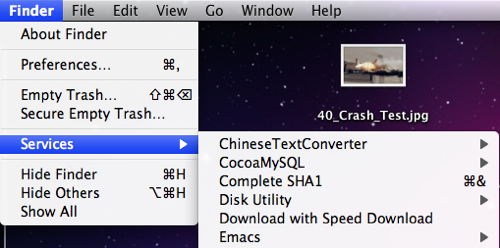
The Mac has various unexpected surprises. For example, in the main menu, the item that is the application’s name always has a sub-item called “Services.” Try selecting a block of text in any application, then go to the “Services” menu, then “Speech,” then “Start Speaking Text” — and the Mac will read the selected text aloud. Unfortunately there’s no option in Portuguese.
In Finder you have the option in the “Go” menu and then “Connect to Server,” or the shortcut ⌘+K, to connect to shared folders on other Macs or on your company’s Windows file server. For a Windows server you’re used to typing something like \server\folder. On Mac you’ll type something like smb://server.domain/folder. If you’re using Windows 2000 or later as the server, remember to include the full server name including the root domain of your directory. Usually that’s all you need.
There’s no shortcut to force-lock your computer so nobody can access it while you’re away. One way is to use the screen saver. First, open “System Preferences” and “Security” — you’ll have the option “Require password to wake this computer from sleep or screen saver.” With this enabled, every time you exit the screensaver or the computer wakes up, it will ask for your password. Now, still in “System Preferences,” choose “Desktop & Screen Saver,” then “Screen Saver.” On this screen there will be a “Hot Corners” option where you can choose a corner of the screen that, when you move the mouse there, will start the screensaver. This gives you a quick shortcut to lock your computer.
Every time you download a program from the internet, the first time you try to run it the Mac will show you the URL it was downloaded from and ask for confirmation. To be notified to confirm whenever you or something tries to modify a system setting, go to “System Preferences,” “Security,” and enable “Require password to unlock each System Preferences pane.” The Mac tends to warn you whenever something wanting to escalate authority tries to run. You need to enter your administrator password to confirm — for Linux users it’s similar to using “sudo” in the Terminal. The Mac is quite secure; its architecture prevents trivial malware from taking over the machine as on Windows, and this has nothing to do with market share. The user simply needs to explicitly do something foolish to be compromised. You only need antivirus if you want to make sure you don’t accidentally forward to someone else an attachment you received containing a virus — your machine will be fine, but you might inadvertently pass one along.
You’ll miss programs like Norton Utilities — because you simply don’t need them. For a defragmenter, for example, Mac OS does automatic defragmentation for you. Also understand that your filesystem is HFS+, not FAT or NTFS. A peculiarity is that HFS+ has Resource Forks, which means when you copy Mac files to FAT USB drives, for example, you end up with what looks like “duplicate” files with an underscore at the start of the name — that’s the resource fork representation on filesystems that don’t support it. Also understand that every Mac “application” is actually a folder with a “.app” extension and an icon. When transporting applications, it’s ideal not to copy them to a FAT USB drive but instead first put them in a DMG or simply zip them (the “Archive” option in the context menu), then copy them. Also remember that Unix files have permissions and FAT doesn’t preserve them.
The equivalent of Windows Startup Items is in “System Preferences,” “Accounts,” your user, and “Login Items.”
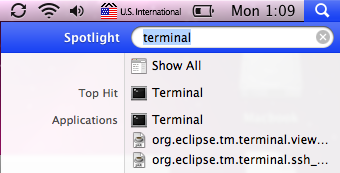
The Mac is a BSD Unix. As such it has a Terminal application in the Utilities folder. Use Spotlight to access it more easily. It already opens a BASH shell, and from there you can manipulate files and programs very easily in a POSIX environment. If you come from Linux, you’ll feel right at home.
Speaking of Linux, unfortunately one deficiency is the lack of a good package manager. On Ubuntu/Debian we have apt-get; on Redhat/Fedora/CentOS we have Yum. On Mac there’s no standard. The recommendation is to use HomeBrew, a system for managing the installation and maintenance of open source projects. It’s not as powerful or robust as Aptitude on Ubuntu, but it does its job well. You’ll also come across others like MacPorts and Fink, but they’re either outdated or more hassle — I don’t recommend them. See the next tip.
HomeBrew is the best installer for open-source software like MySQL, PostgreSQL, Redis, Git, Android SDK and much more. In some cases it downloads the binary directly for Mac but usually it downloads the source code, applies necessary patches, and compiles. For that you need compilers and other tools. The simplest way is to use the App Store to buy and download XCode. This tip is more for software developers — if you’re not one, you can ignore it.
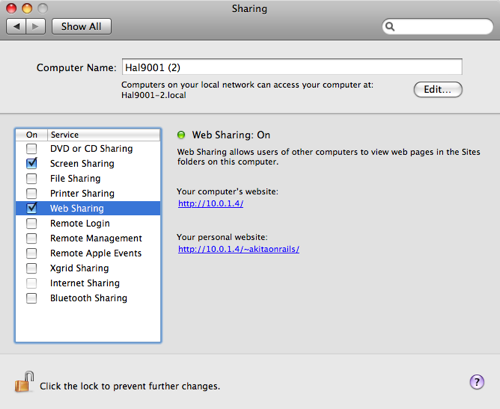
Every Mac comes pre-installed with Apache 2. It’s “hidden” under the name “Web Folder Sharing.” You can find it in System Preferences, “Sharing,” then “Web Sharing.” When you turn this on or off, you’re dealing with Apache 2, which by default looks at the “Sites” folder in your Users/Home directory. Another option, “Remote Login,” actually enables or disables OpenSSH access. “Screen Sharing,” in turn, activates a VNC server — so a VNC client on Windows can also share the screen of your Mac.
A deficiency corrected from Snow Leopard onward is the Firewall. On Leopard and earlier, the Firewall comes disabled by default. Open System Preferences again, option “Security,” then “Firewall.” Note that it comes set to “Allow all incoming connections” — change it at minimum to “Allow only essential services” or, better yet, “Set access for specific services and applications,” which works as a whitelist of applications. Everything is blocked by default and only the applications you select in the box below will have open ports.
Lion is the most practical version from a disaster recovery standpoint. There’s no more boot DVD. Every Mac now has a hidden partition containing the installer, for use when you need to reinstall or check disks and other things. Just boot while holding (Command-R) ⌘-R, or hold the (Option) ⌥ key during boot to get a menu with available partitions and choose “Recovery HD.”

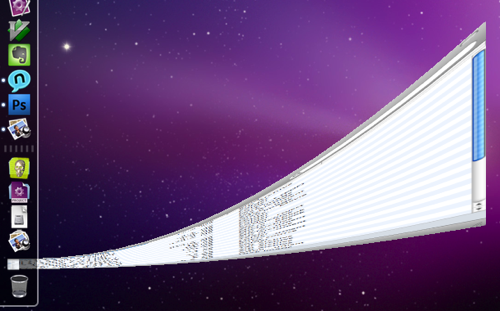
- Finally, to impress your friends: when minimizing a window, using Exposé, or activating the Dashboard, all these actions have animated transitions. If you hold the “Shift” key at the same time, the animation plays in slow motion, showing every step of the transition in slow speed :-)
Applications
Some of the applications listed below are available on the Mac App Store — always check there first. If not, follow the links and download manually. At the end of this section I have a tip on keeping your applications always up to date.
If you have an iPad, you can use it as a second monitor connected to your Mac via Wi-Fi (they need to be on the same network). For this, buy the Air Display app.
If you have a new Apple TV (the small black model), you can mirror the screen of your iPhone 4S, iPad 2, or later via Wi-Fi using the Air Play feature on iOS. The next version of Mac, Mountain Lion, will allow the same from your Mac. But until then, you can still mirror your Mac to an HDTV via Apple TV by purchasing the Air Parrot app. It’s the simplest way to watch movies and videos from your Mac directly on your TV.
I personally love reading many RSS and Atom feeds registered in my Google Reader account, and the best Mac and iOS app for that is undoubtedly Reeder.
With so much internet content, you download a lot of things but don’t always know which files are consuming the most disk space. To find them more easily (tip: most of the time, what consumes the most space are your video podcasts in iTunes) there are excellent paid apps like DaisyDisk but I still like the free app GrandPerspective.
OS X alone handles compressed file formats like zip and gz. But to decompress more interesting formats like 7-zip and rar, be sure to install The Unarchiver.
For applications, use sites like Apple’s own to see what’s most popular. To start, you’ll want to install Perian for more video codecs, Flip4Mac for Windows codecs, and VLC for a player that handles all the strangest codecs.
To rip DVDs and create mp4 files, use the freeware HandBrake. To convert videos for iPod and iPhone, use iSquint. To create, edit, and convert subtitle files, use Miyu and Submerge.
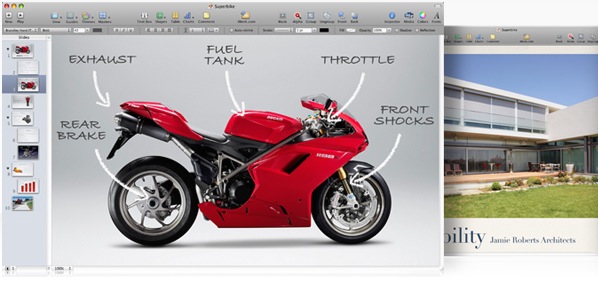
For presentations, forget Powerpoint. It’s very worth buying iWork to use the famous Keynote. The iLife and iWork packages are all available via the App Store — buy them there.
For communication, use Adium — a client for Jabber, Messenger, Yahoo, AIM, etc. and one of the best out there, though it doesn’t yet support video chat for Messenger. The classic Skype is another great option. If you like IRC, one of the best clients is Colloquy.
You want to run Windows or some Linux distro. The option that comes with the Mac is to use Bootcamp (in Utilities) to repartition your HD and install a second operating system. However, I recommend using virtualization products first, such as the open-source VirtualBox, or the commercial Parallels Desktop or VMWare Fusion. They’re all very good. With them you can run Windows XP or Windows 7 (I don’t recommend Vista unless you have a desktop Mac with more than 4GB of RAM), Ubuntu, Fedora, etc. In most cases, even running heavy stuff like SQL Server with Visual Studio works great. For games, no — better to dual-boot, or better yet, buy a PlayStation 3 or Xbox 360.
The Mac is quite secure; most things like saving passwords via Safari go into an infrastructure called Keychain — an encrypted, secure storage. You can even encrypt your entire Home folder if you want. For other things like sharing authentication data across multiple browsers or just storing notes securely, I suggest using 1Password — one of the best out there.
Macs normally don’t need uninstallers. The vast majority of programs you simply drag to the Applications folder, so you just delete them from there. However, they’ll leave behind some artifacts, like files in the Library/Preferences directory. Normally it’s fine to leave them there — they’re very small and don’t contribute to corrupting anything like a Registry. But if you’re the paranoid type who needs to remove everything, use AppZapper, which will do that for you.
Those who’ve seen Mac screencasts online might think, “How do they do that?” One of the secrets is the commercial software ScreenFlow — by far one of the best, most performant, and easiest to use. Worth every cent. To record the keyboard shortcuts you’re using as a layer on top of your video, use KeyCastr. For mouse effects like focus and others, use OmniDazzle.

The Mac needs very little maintenance and most tools are already built into the operating system. Just as a visual “shell” to access them more easily, use Onyx, which provides a way to run all maintenance scripts at once. Sometimes, when your Mac starts behaving strangely, running Onyx tends to help a lot — though that situation is very rare.
As a text editor, there’s no getting around it — after 3 years my favorite is still TextMate. For those who are more Linux purists, you might prefer MacVim, especially with my Ruby snippets package :-) Beyond those, there are dozens of other editors but none really appealed to me. A plugin to make Textmate even nicer is MissingDrawer — I recommend trying it. If you’re a developer, follow my vimfiles repository to have your Vim pre-configured with the best of what’s available.
For downloaders, Mozilla Firefox has various extensions for this, or if you’re a solid Linux user, you’ll know how to use good old curl. But if you want something more visual, an excellent commercial alternative is Speed Download, which has various options for parallel downloads, resuming interrupted downloads, and so on. Still in the downloads section, if you’re into BitTorrent, one of the best clients is Transmission.
For burning DVDs, the Mac can handle it reasonably well on its own. But if you want more control and detail, one of the most traditional and best commercial options is Toast by Roxio — the equivalent of Nero on Windows. For something simpler there’s Disco, one of the most visually beautiful, with a feature that keeps a database of DVDs you’ve burned to make searches easier. And a reasonable freeware is Burn.
Even though Time Machine already does an excellent job of backup, SuperDuper! remains an excellent alternative. It makes a bit-for-bit image of your system, supports delta updates, and lets you create bootable external hard drives. It’s a good thing to do before doing anything drastic, like installing a new version of Mac OS. It would be the equivalent of Norton Ghost on Windows.
If you’re a developer using Git with Gitk, you can install Git via HomeBrew (with HomeBrew installed, just open a Terminal and use “brew install git”) and then use Gitx instead of the ugly Gitk. It uses Cocoa components so it has the look and feel of a native Mac app.
If you have an iPod, know that it has the option to play Audiobooks. Unlike mp3 and aac, the standard audiobook format is m4b or mpeg-4 with bookmark support. This is very important because mp3 has no bookmarks, and when a book is 20 hours long it’s very bad if your iPod loses your place, or worse, if you want to navigate between chapters of a 40-hour book. Instead, if you have audiobooks in mp3 format, use Audiobook Builder which will compile all the mp3s into a single m4b that your iTunes will sync to your iPod.
You were a Windows developer and have dozens of e-books in Microsoft’s CHM (compiled HTML) format. Fortunately, on Mac you have the open-source reader Chmox.
Say you have two computers, or some external hard drives, and you need to keep some folders synchronized between them. Again, if you’re a solid Linux user, you can comfortably use “rsync” from the command line. But if you want a visual “shell” for rsync, a great option is ChronoSync, which allows bi-directional synchronization and much more. It’s how I keep two 500GB external hard drives synchronized with each other through my Mac Mini — a poor man’s RAID 1 :-)
A well-known subsystem is Growl — a notification infrastructure. For example, when an application like Transmission finishes a download, it sends a message to Growl, which appears as a popup on your desktop to notify you. Adium also uses it to show who came online, and so on. Growl comes with plugins for iTunes and Mail.app, for example, plus a command-line tool to integrate with other applications.
The Mail.app application is organized with a list of emails on top and a view of the selected email below. Some prefer vertical bars instead of horizontal, more like Outlook. In that case use the LetterBox plugin for Mail.app.
A famous but more advanced application is the legendary QuickSilver, which some see only as a fast way to find applications, but which is really a sophisticated environment for chaining functionality — where you can, for example, find and select several files, attach them to an email, and send it to an address in your Address Book. It has dozens of plugins and themes for customization. It’s interesting at first and there are various clones with the same idea, but in the end you’ll notice that you mostly use it just to find applications. And for that, the simplest thing is to just use Command ⌘ + Space to activate Spotlight (the magnifying glass icon in the upper-right corner of the screen) and type the application’s name. For finding documents, same thing. I find it more practical and faster.
Those coming from Windows might still need to access their old machine, or at the office you need to deal with Windows programs. Fortunately, at minimum, Windows has the RDP (Remote Desktop Protocol) which allows remote access. For Mac the best option is CoRD — the equivalent of Terminal Client.
A very useful utility for monitoring your CPU, RAM, disk, network usage, etc. is iStat Pro, which has a widget version for the Dashboard, or iStat Menu for the top menu bar. I personally prefer the second but both are very good.
A well-known benchmarker in the Mac world is XBench, which tests your Mac and lets you compare results on their website with other Macs to evaluate the overall performance of your system against others.
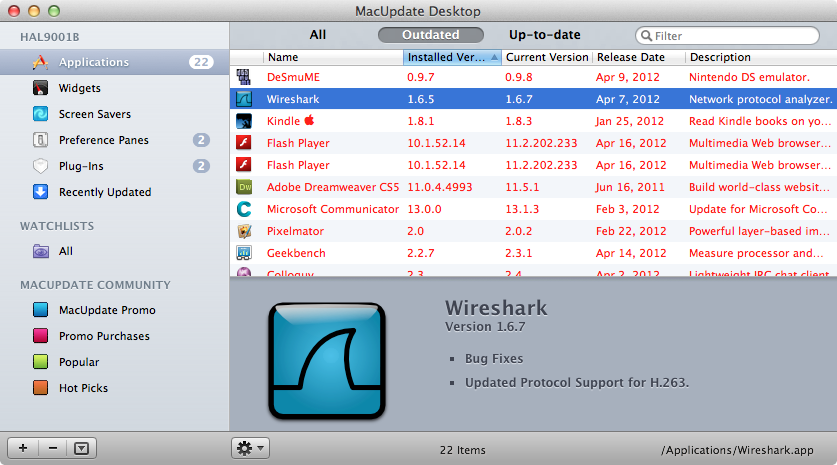
The last tip is to create an account on MacUpdate and then download the MacUpdate Desktop software. Open the software occasionally and it will tell you everything that’s outdated on your machine, letting you choose what to update:
History
To understand Mac OS X, you need to understand its history. For that, the best set of articles are those written by ArsTechnica since 2000:
Also understand that Mac OS X is completely different from its predecessor, the Mac OS, which ended its life at version 9. When Steve Jobs was forced out of Apple in 1986, he founded the company Next and on it they built the NextStep operating system — a 32-bit, multitasking OS with a Mach-based kernel. Watch Steve Jobs himself demonstrating NextStep version 3. NextStep was later opened as a standard together with Sun as OpenStep. The WindowMaker window manager is inspired by OpenStep and supports its open-source implementation, GNUStep. Later, in 1997, Apple reacquired Next and NextStep became the foundation for Mac OS X — its development framework was renamed Cocoa, which is why the development APIs have names like NSString, NSWindow, etc., where “NS” stands for “NextStep.”